*These instructions are valid as of 05.15.2024*
This article provides a straightforward guide to setting up the integration between HubSpot and Q360. It covers the essential steps of generating the API key in HubSpot and configuring Scope settings. See separate Help Center article to configure HubSpot API settings within Q360: Integration with HubSpot
1. Open HubSpot: Log in to your HubSpot account
2. Navigate to Settings: Click on the Settings gear icon located in the top right corner of the HubSpot window
3. Locate Integrations: In the Settings menu, find and click on the “Integrations” option
4. Select Private Apps: From the drop down menu, click on “Private Apps” to proceed with the API setup
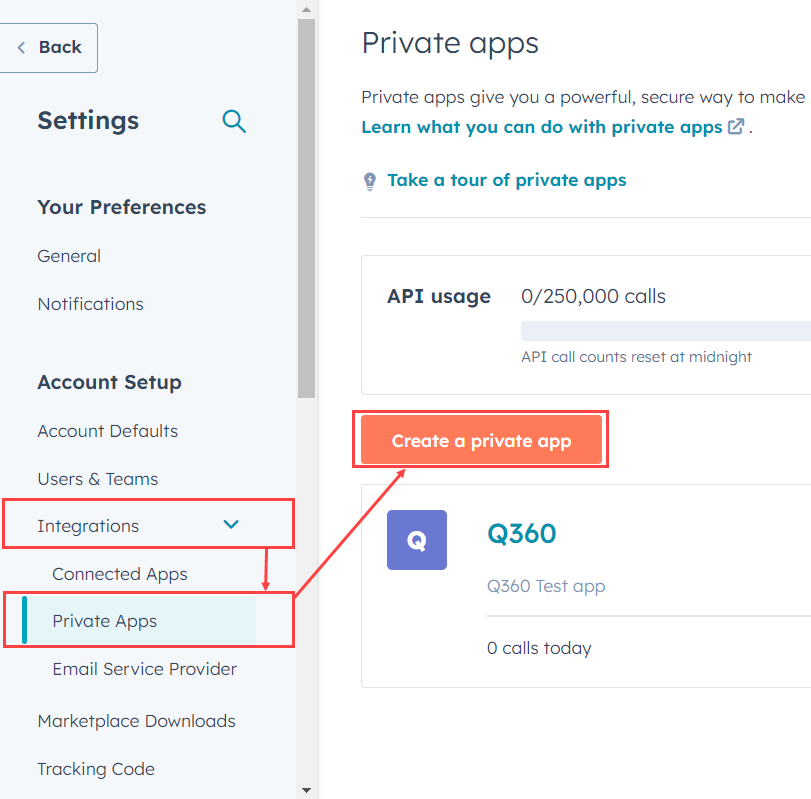
5. Complete Basic Info: Fill out the required fields in the ‘Basic Info’ tab. This typically includes the App Name and Description
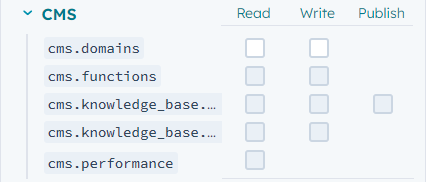
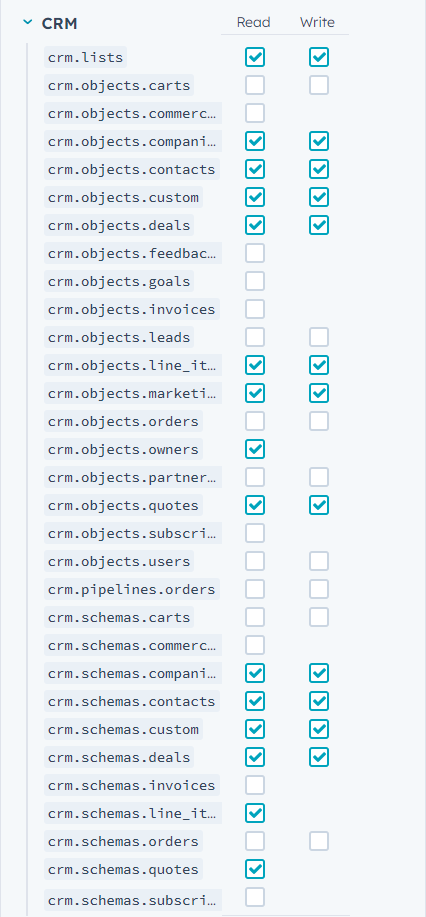
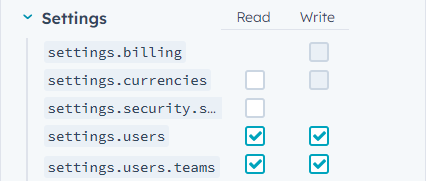
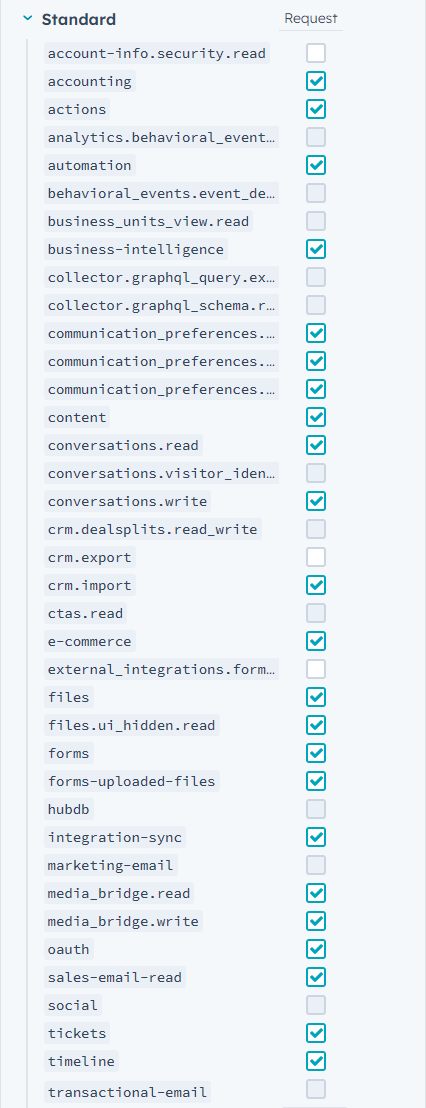
6. Set Scopes: Navigate to the “Scopes” tab and select the necessary permissions that Q360 will need to access HubSpot data. For ideal performance, set CMS / Settings below
7. Create the App: After setting the necessary Scopes, click on “Create App” located in the top right corner of the HubSpot interface. This action will generate an Access Token
8. Copy the Access Token: Once your app is created, copy the generated Access Token. This token must be entered into Q360 > API Configuration > Hubspot tab > Access Token field