This documentation was authored by secure AI tools. Please review this content carefully before integrating it with other processes.
Project Console Overview
Path: Projects > Project Console
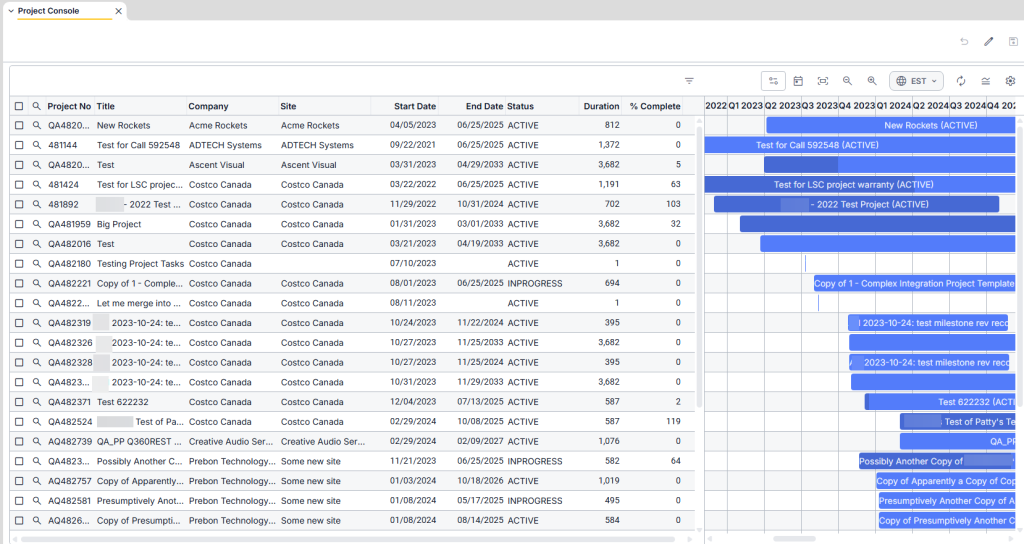
The Project Console is your central hub in Q360 for quickly viewing, managing, and diagnosing project performance. It provides a consolidated snapshot of project status, and activity, along with tools for filtering, drilldowns, and direct actions.
What the Project Console Does
- Centralized project view: Displays status, percent complete, key dates, assigned resources, and financials (budget vs. actuals).
- WIP (Work In Progress) analysis (in conjunction with Ask Q): evaluates earned revenue, costs, margin, and flags for margin erosion or other risks.
- Quick filters and aggregates: Filter by Project Manager, branch, department, status, or saved filters to view lists or roll-up totals.
- Drilldowns: Open detailed task lists, service calls, time and billing, or change orders directly from a project row.
- Action surface: Create tasks, log time bills, add events, and link service calls directly from the console (based on user permissions).
- Project Console Legend: Accessible from the Project Console, the color legend identifies Projects based on Status.
Common Views and Outputs
Note: some of these are only produced in conjunction with Ask Q
- Project list table: Sortable and filterable grid with columns such as Project No, Title, Status, Revenue, Costs, and % Complete.
- Project WIP Summary: Financial snapshot for a single project as of a selected date.
- Aggregated metrics: Totals across multiple projects (for example, projected revenue by manager or branch).
- Charts and visualizations: On-demand visuals such as burn-down charts or revenue vs. budget comparisons.
When to Use the Project Console
- Perform a quick health check on a single project using the Project WIP Summary (Ask Q about this).
- Review totals or trends across multiple projects using filters and aggregation.
- Identify at-risk projects by watching for margin erosion, negative variances, or overdue milestones.
- Prepare status updates or financial review reports.
Example Ask Q Requests
You can use Ask Q to query project data directly from the console and from additional data to which Ask Q has access. Note: Ask Q will only provide you with information based on data to which you have access permissions. Examples include:
- “Show WIP for Project ****** as of 2025-06-30.”
- “List all projects managed by ********.”
- “Which projects are showing margin risk this month?”
If you ask a project-specific question and provide a Project No, Ask Q will automatically run the Project WIP Summary and return the relevant data.
Best Practices and Tips
- Provide a Project No or a clear filter (manager, branch, or date) for the most accurate results.
- Include an “as of” date when you need a point-in-time financial snapshot; otherwise, the system defaults to the current date.
- You can create tasks, time bills, or events from the console, but always validate AI-created records inside Q360.
Limitations
- The console reflects live Q360 data; accuracy depends on timely updates to time, billing, and change orders.
- Complex, cross-project analytics may run slower and work best with clear filter criteria.
- Charts are basic (Chart.js). For advanced visualizations, export the data to an external reporting tool.
Task Console Overview
Path: Projects > Task Console
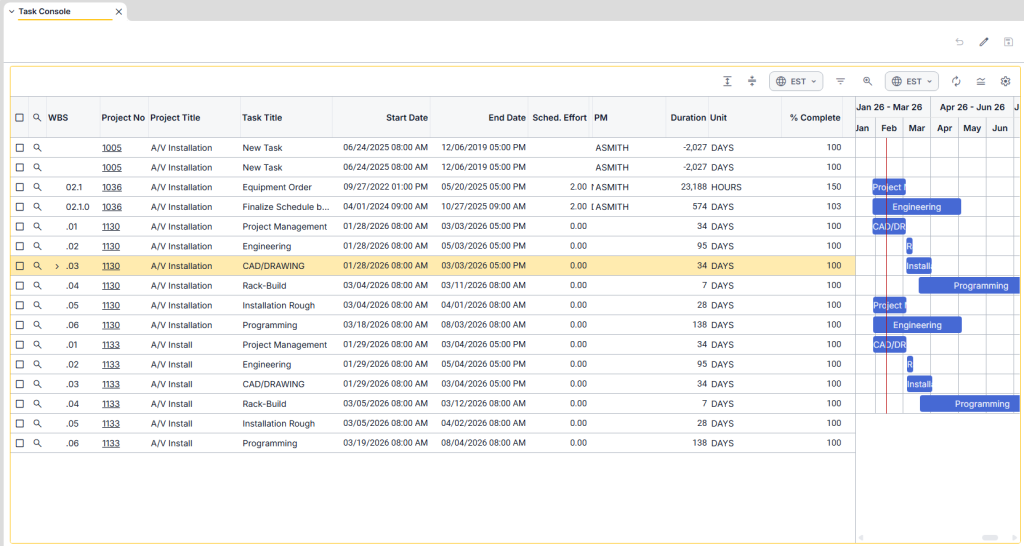
The Task Console is your day-to-day control panel in Q360 for creating, tracking, and completing work at the task level. It provides a centralized workspace for managing assignments, schedules, progress, and related project activity.
What the Task Console Does
- Centralized task list: View Task No, title, status, assigned user, start/target/due dates, estimated hours, actual hours, and percent complete.
- Work breakdown and relationships: See which project a task belongs to, parent/child task structures, linked service calls, and related change orders.
- Assignment and workload visibility: Review assigned users, current workload, resource conflicts, and unassigned tasks.
- Time and billing access: Quickly view time billed to a task, including billable and non-billable hours.
- Action surface: Create or edit tasks, reassign work, adjust schedules, add notes, attach files, link calls, and create time bills or events directly (based on permissions).
- Task Console Legend: Accessible from the Task Console, the color legend identifies Tasks based on Category
Common Views and Outputs
- Filterable task table: Sort or filter by assigned user, status, project, date range, or custom filters.
- My Tasks view: Displays tasks assigned to you or your team, with grouping and sorting options such as due date or priority.
- Overdue and at-risk lists: Identify tasks that are past due or trending late based on percent complete versus schedule.
- Task detail panel: Shows descriptions, checklists or subtasks, attachments, history, and related calls or time entries.
When to Use the Task Console
- Manage daily work by selecting tasks, logging progress, and updating status.
- Balance resources by identifying overloaded or underutilized users.
- Reconcile billing by confirming time is attached to the correct task before invoicing.
- Create tasks for projects, internal work, or feature requests.
How Ask Q Can Help
- Create tasks:
Example: “Create a task titled ‘Install HVAC controls’ on project *********.”
Ask Q will create the task using the Create Task tool. - Log time:
Example: “Log 2.5 hours to TaskNo ****** for today.”
Ask Q will create the time bill using the Create Time Bill tool, following system rules (0.25-hour increments, maximum 7.5 hours per bill, and recommended daily totals of 7–8 hours). - Link calls or events:
If a task requires a call or event, Ask Q can add it using the Add Call Event function. - Look up tasks:
Provide a Task No or filters to retrieve task details or lists of matching tasks.
Note: When Ask Q creates records (tasks, time bills, or events), it will confirm what is being submitted. Always validate the record inside Q360.
Best Practices and Tips
- Provide a Task No for precise updates; when creating tasks, include a title and Project No.
- Use clear due dates and estimated hours to keep workload views accurate.
- Link time entries to the correct task before closing or invoicing a project.
- Use the My Tasks view to prioritize daily work; sort by due date and then priority.
- Attach photos or notes to tasks to support smoother technician handoffs.
Common Ask Q Commands
- “Create task: Replace rooftop unit filters — ProjectNo ****** — due 2026-03-01.”
- “Show my tasks assigned to ****** (UserID) due this week.”
- “Log 1.5 hours to TaskNo ***** for today.”
- “Which tasks are overdue for Project *********?”
Limitations
- Console accuracy depends on timely time and billing entries, as well as status updates.
- Heavy cross-project resource analysis works best with clear filters.
- Ask Q will not guess Task Nos or hours; it will request missing information when needed, except when the feature-request override applies.