This section describes the various Human Resources procedures in Q360.
For detailed instruction, see sub topics to the left.
This section describes the various Human Resources procedures in Q360.
For detailed instruction, see sub topics to the left.
Candidates and Employees are set up in Q360 by the HR representative.
For detailed instruction, see sub topics to the left.
This is an optional step and not required for creation of an Employee record. However, there are benefits to the centralized tracking of a Candidate throughout the hiring process. If the Candidate is hired, the data entered is copied over to the Employee record during the conversion step
Note: Should the Candidate be hired, you may convert the Candidate to an Employee using the Candidate form Extended Menu “Convert to Employee” option.
Typically, a newly created Employee record has blank User ID and Contact record
To add this information, complete the following steps:
For any future changes required for an Employee such as Title, Branch, or Department, complete the following steps:
You can specify a typical work week for an Employee including the days of the week as well as the start and end hours for the day. The work week for an Employee must be set up prior to scheduling or creating time requests. Note: this action is normally completed after HR Admin has already created an Employee with User ID and Contact No.
HR personnel can assign PTO days and other time off allocations, including vacation days in Employee records.
To allocate days for an Employee, complete the following steps:
The Employee Schedule is created by HR representatives during or prior to the onboarding process. This schedule represents the standard working hours and days of the Employee.
For detailed instruction, see sub topics to the left.
There are 2 options to create Employee Schedule: via Create Company Employee Schedule or via the Employee record. Create Company Employee Schedule allows selection of multiple or all Employees, while from the Employee record, it is intended for a specific Employee
After your supervisor approves your time off, generally, an HR representative will also need to approve the time off request. These requests will appear as Tasks on the HR representative’s Task List.
For detailed instruction, see sub topics to the left.
Auto Approve time requests:
HR and / or Manager Approval may be set to Auto Approve from the General Code EMPSCHEDT using the Auto Approve column. Place the form in EDIT mode, double click inside the desired Auto Approve column cell, and select HR, MANAGER or BOTH dependent upon which approvals you wish to set to auto approve. When finished, SAVE the form
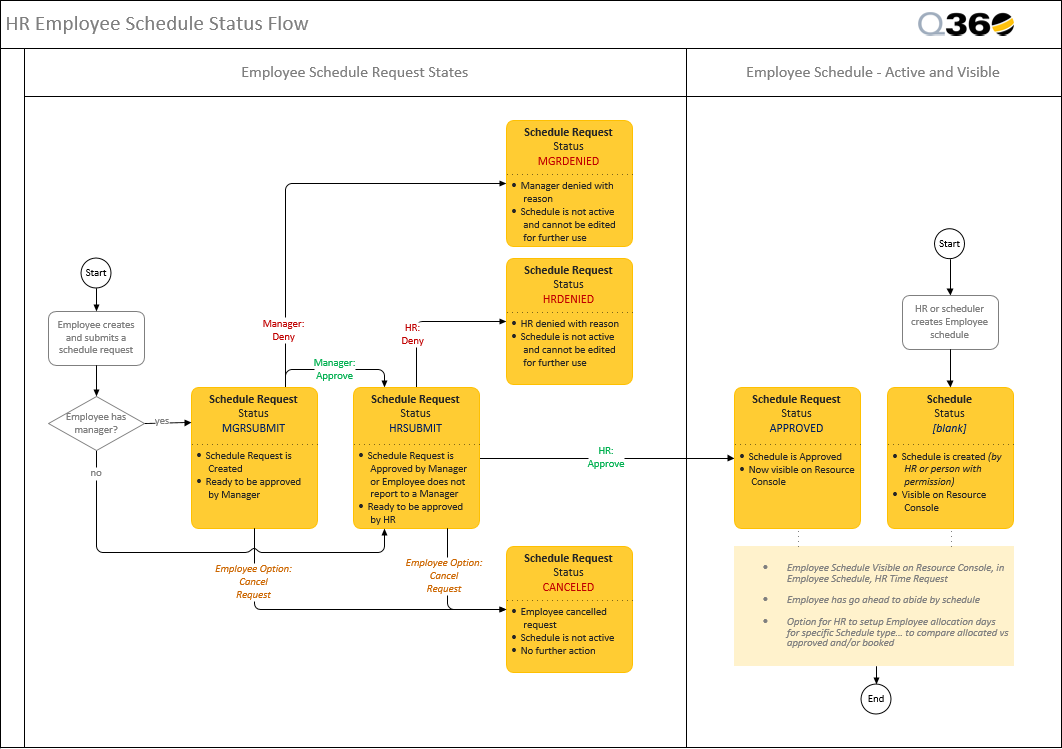
Reference: a submitted time request will go through the MGRSUBMIT, HRSUBMIT, and APPROVED statuses, as illustrated on this Q360 employee schedule status flow for time request:
HR representatives now have three methods by which to add events to employee schedules. This might be required when an Employee is unable to schedule their own time off, or when an Employee needs to be scheduled for HR-related activities such as training.
Note: Scheduler must have HR permissions in order to use the methods discussed below.
Method 1: Resource Console (Best Practice)
Note: Event reservation types are added and defined as General Codes, including event color choices. Event types defined this way will automatically be added to the Extended Menu legend.
Note: This method replaces previous Resource Console method, “Create Employee HR Reservation.”
Method 2: Global Schedule
Note: There is no SAVE button on this window. Clicking OKAY on the pop-up confirmation serves to save the event. There is also no means by which to edit events once created. If changes need to be made, the event must be deleted using the DELETE button, and re-created.
Method 3: HR Time Request
Note: This is the least efficient method of entering HR reservations for events such as training and / or meetings and should be reserved for employee use in requesting time off or HR time off overrides in the event that an employee is unable to enter a request.